


The “Effort Assignment” feature (formerly named Fee Builder) allows users to quickly enter the total number of hours for each project team member across all the tasks helping the project manager to build an Effort/Fee estimate in a few steps.
- Lotus360 solution + MS Editable Contours API are utilized to build this feature.
- Lotus360 provides a familiar UI for users similar to MS Excel.
Configuration
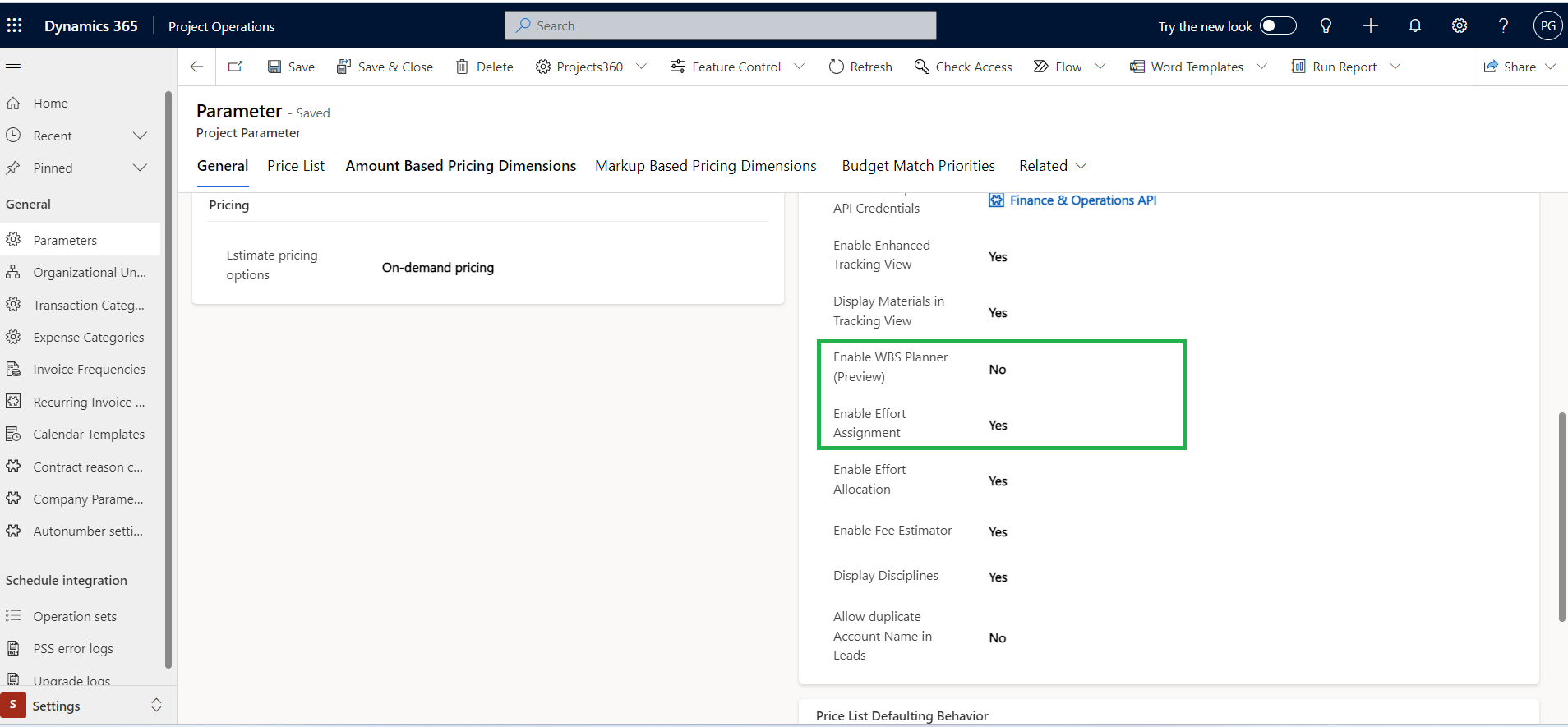
This feature can be enabled from ‘Parameters > General > Projects360 parameters > Enable Effort Assignment’.
Note: It is recommended to configure ‘Schedule Mode’ parameter as ‘Fixed duration’ since this mode allows to modify effort without recalculating Start/End dates every time a task is updated.
 |
Note – The Effort Assignment tab in the Projects form will only be visible if “Enable WBS Planner (Preview)” is set to “No”. |
Effort Assignment (Fee Builder) spreadsheet
This section details out the “Effort Assignment” spreadsheet functionality and its fields.
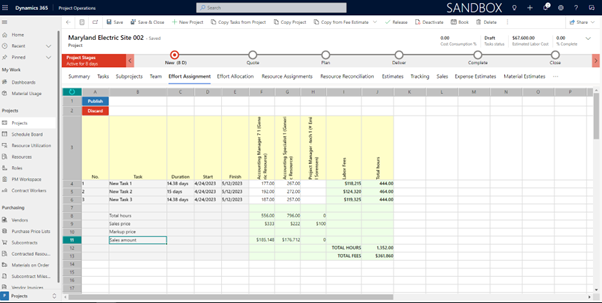
A ‘Draft’ version of the spreadsheet will be generated while the user starts updating values in different cells. After all the changes are made, the user will be able to either ‘Publish’ those changes to Projects for the Web or ‘Discard’ those changes by reloading the previously published version.
The following are the buttons available on the spreadsheet.
- Publish: This button will trigger the publishing process through the MS Editable Contours API to update Projects for the Web.
- Discard: This button will remove all the changes made in the ‘Draft” version updating all the values to the previous already published version.
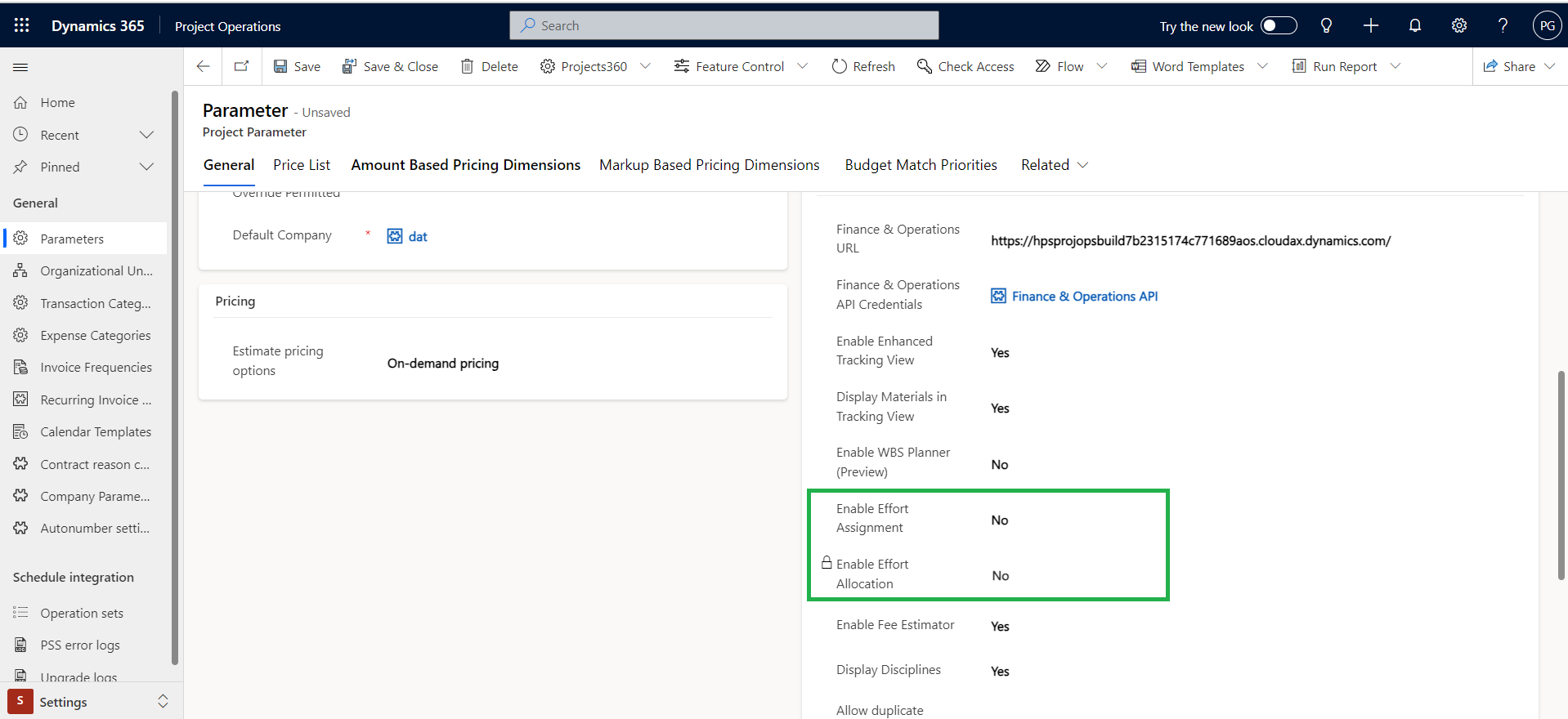
If Enable Effort Assignment is set to No, then the user will not be able to see the Effort Assignment tab.
Note: If Enable Effort Assignment is set to ‘No’ then Enter Effort Allocation will automatically be set to ‘No’ and locked.
The spreadsheet’s fields and totals are described below.
| Fields | Description |
| No | This field is non-editable and displays the Task sorting/position number. |
| Task | This field is non-editable and displays the Task name. This field is updated from the ‘Task’ tab. |
| Duration | This field is non-editable and displays the task Duration in days. This field is updated from the ‘Task’ tab. |
| Start | This field is non-editable and displays the task Start date. This field is updated from the ‘Task’ tab. |
| Finish | This field is non-editable and displays the task Finish date. This field is updated from the ‘Task’ tab. |
| Team members | The spreadsheet will show a new column for each team member. The Role and Resource’s name are displayed as part of the column caption. The user will be able to enter the total number of hours for each team member and task. |
| Total hours | Sum of all the hours allocated across team members and tasks. |
| Sales price | This field is non-editable and displays the Sales price is calculated for the specific Role/Resource based on the Price List configured at the Quote/Contract level. |
| Markup price | This field is non-editable and displays the Markup price is calculated for the specific Role/Resource based on the Price List configured at the Quote/Contract level. |
| Sales amount | This field is non-editable and displays the calculation of Total hours*(Sales price+Markup price). |
Display Effort Assignment
With this latest enhancement on Effort Assignment, users are allowed to hide the Effort Assignment tab for Microsoft planner projects and use Effort Allocation only.
Configuration
The highlighted section below shows the essential setups that System Administrator must configure to use the ‘Display Effort Assignment’ enhancement. This can be activated in the Parameters.
- This parameter controls the process associated with this new ‘Display Effort Assignment’ enhancement within the Projects.
Go to Settings > General > Parameters -> Project360 -> Display Effort Assignment
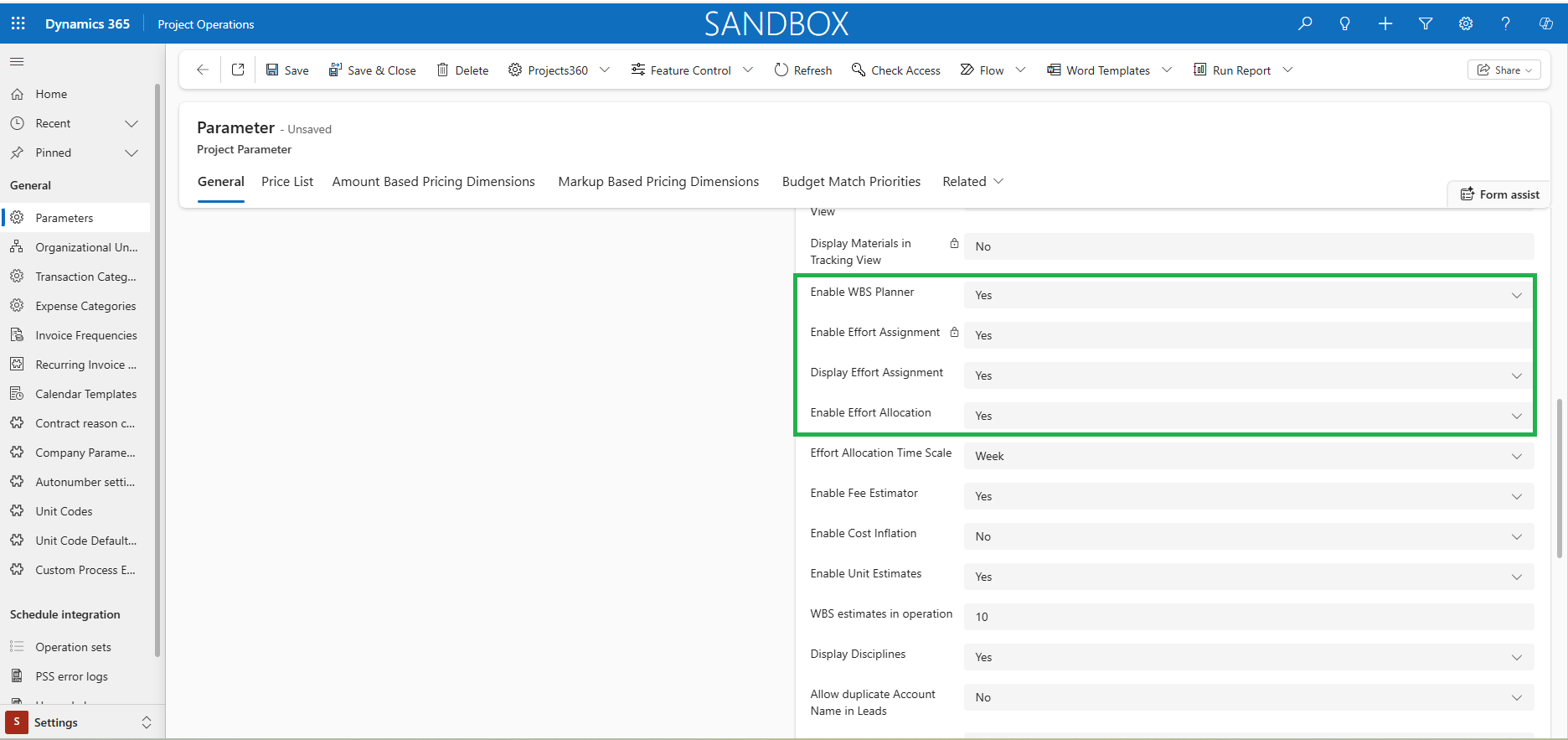
Details of fields required for Display Effort Assignment are as follows:
| Fields | Description |
| Enable WBS Planner | Set as ‘Yes’ to activate the new projects360 ‘WBS Planner’ spreadsheet within the Project form. |
| Enable Effort Assignment | This will be a non-editable field with value as ‘Yes’ when Enable WBS Planner is set as ‘Yes’. |
| Display Effort Assignment | Set as ‘Yes’ to view the projects360 ‘Effort Assignment’ spreadsheet within the Project form. |
| Enable Effort Allocation | Set as ‘Yes’ to activate the new projects360 ‘Effort Allocation’ spreadsheet within the Project form. |
|
Note – We recommend avoiding activating Effort Allocation and Effort Assignments at the same time, as this may lead to overlapping data issues. |