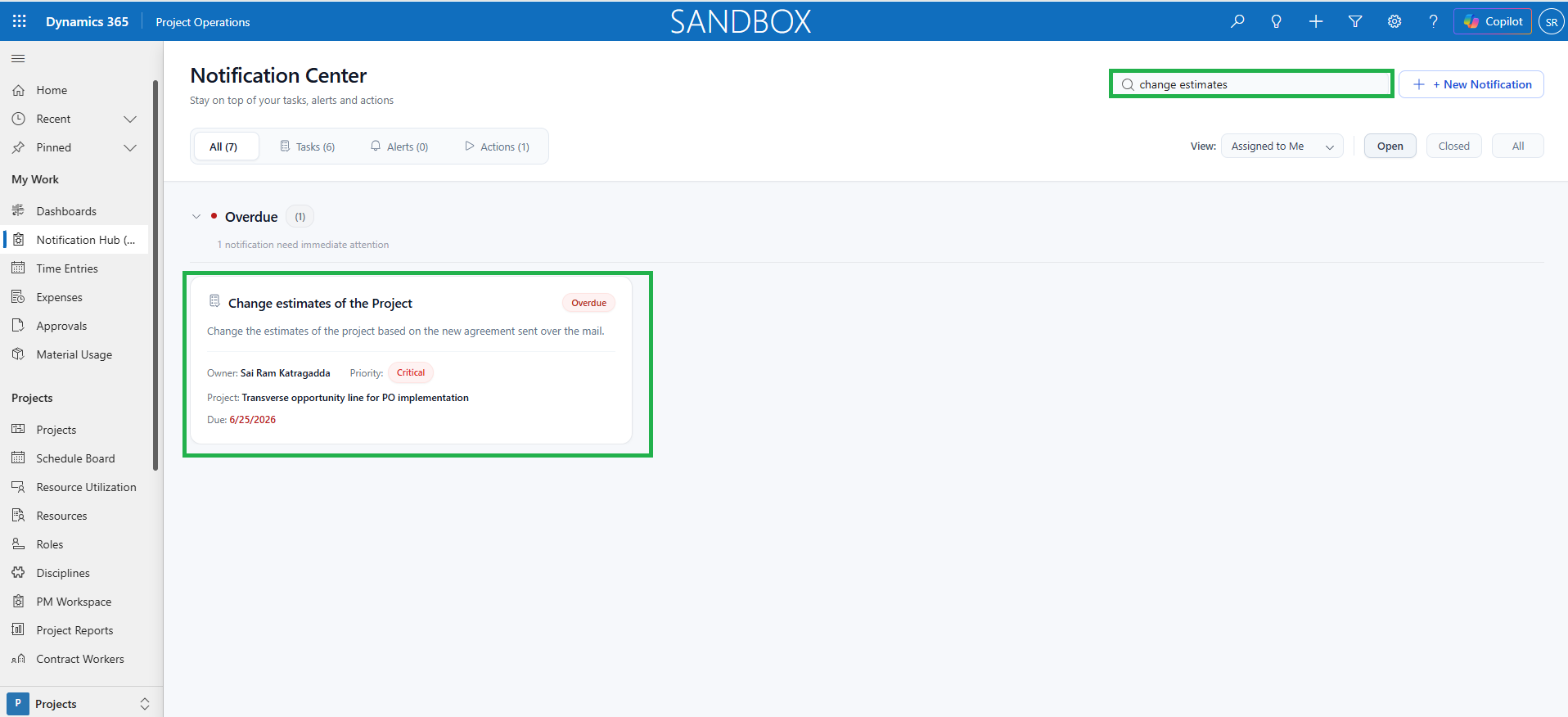


The Notification Center helps users create, manage, and track Tasks, Alerts, and Actions from a single location. It provides real-time visibility into assigned work, important updates, and ongoing activities, helping users stay organized, make informed decisions, and complete work on time.
Configuration
The highlighted section below shows the essential setups that System Administrator must configure to use the ‘Notification framework’ feature. This feature can be activated in the Parameters.
Go to Settings -> General -> Parameters -> Project360 -> Enable Notification Centre (Preview).
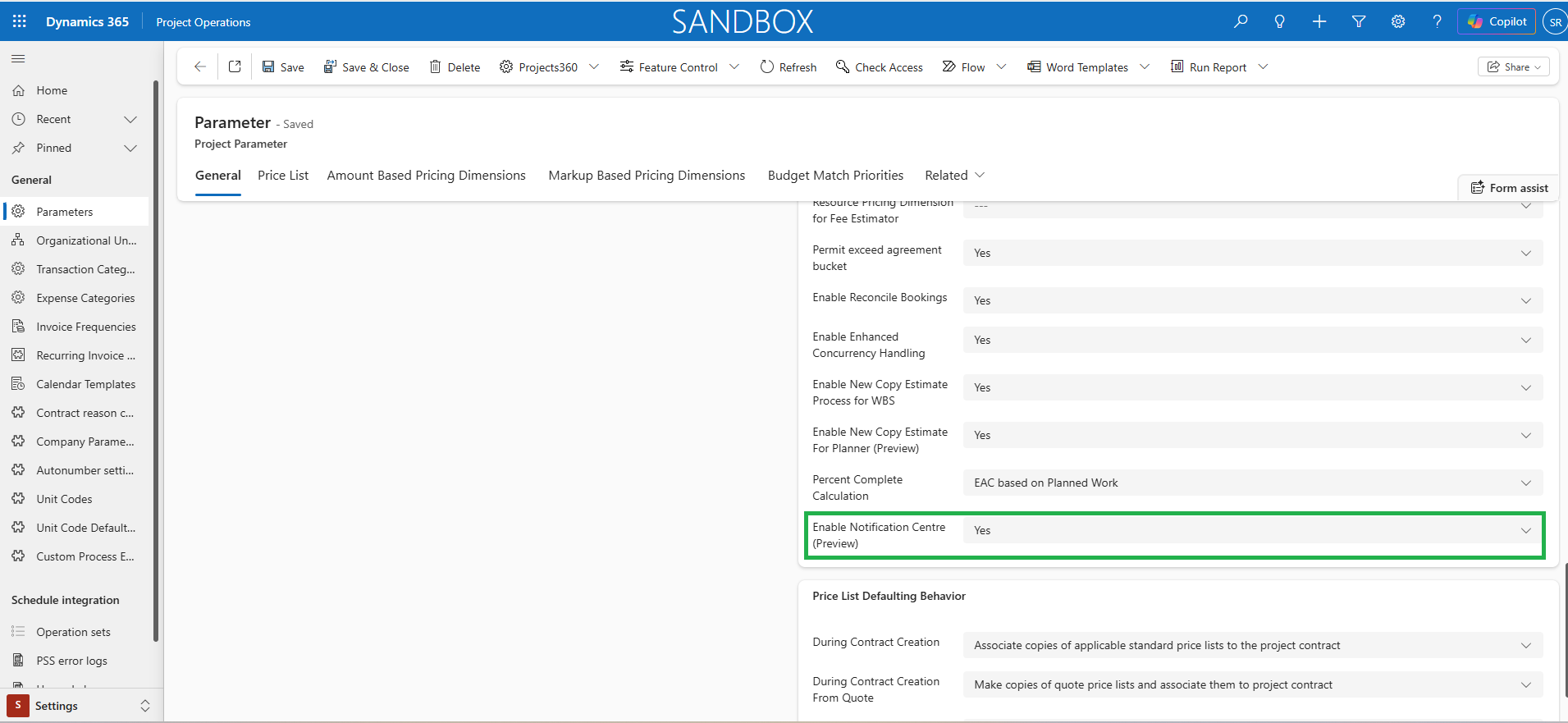
Details of fields required for Notification framework feature are as follows:
| Fields | Description |
| Enable Notification Centre (Preview) | Set as “Yes” to activate the Notification framework (Preview). |
Create New Notifications
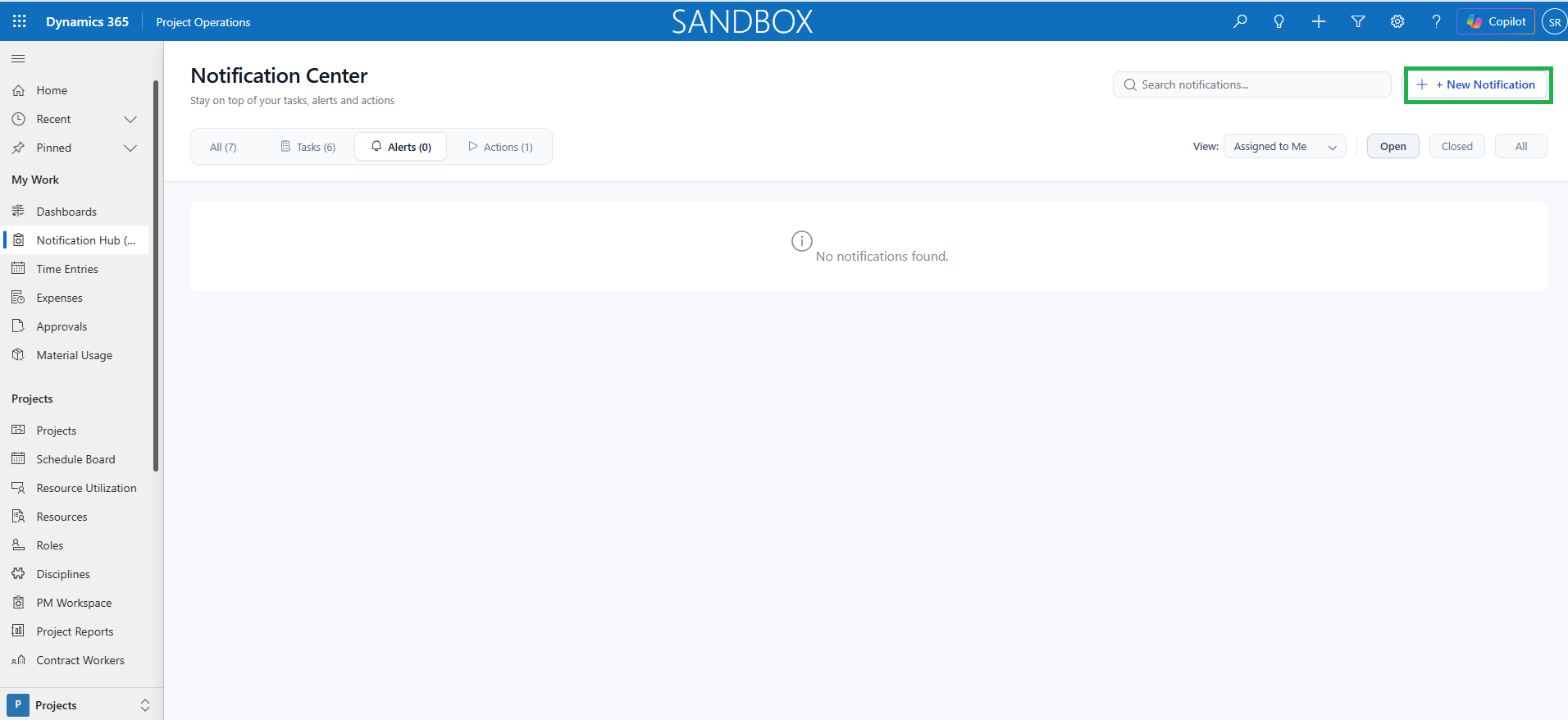
The Notification Center allows users to view existing notifications, create different types of notifications like Tasks, Alerts and Actions.
Go to Projects -> My work -> Notification Hub (Preview).
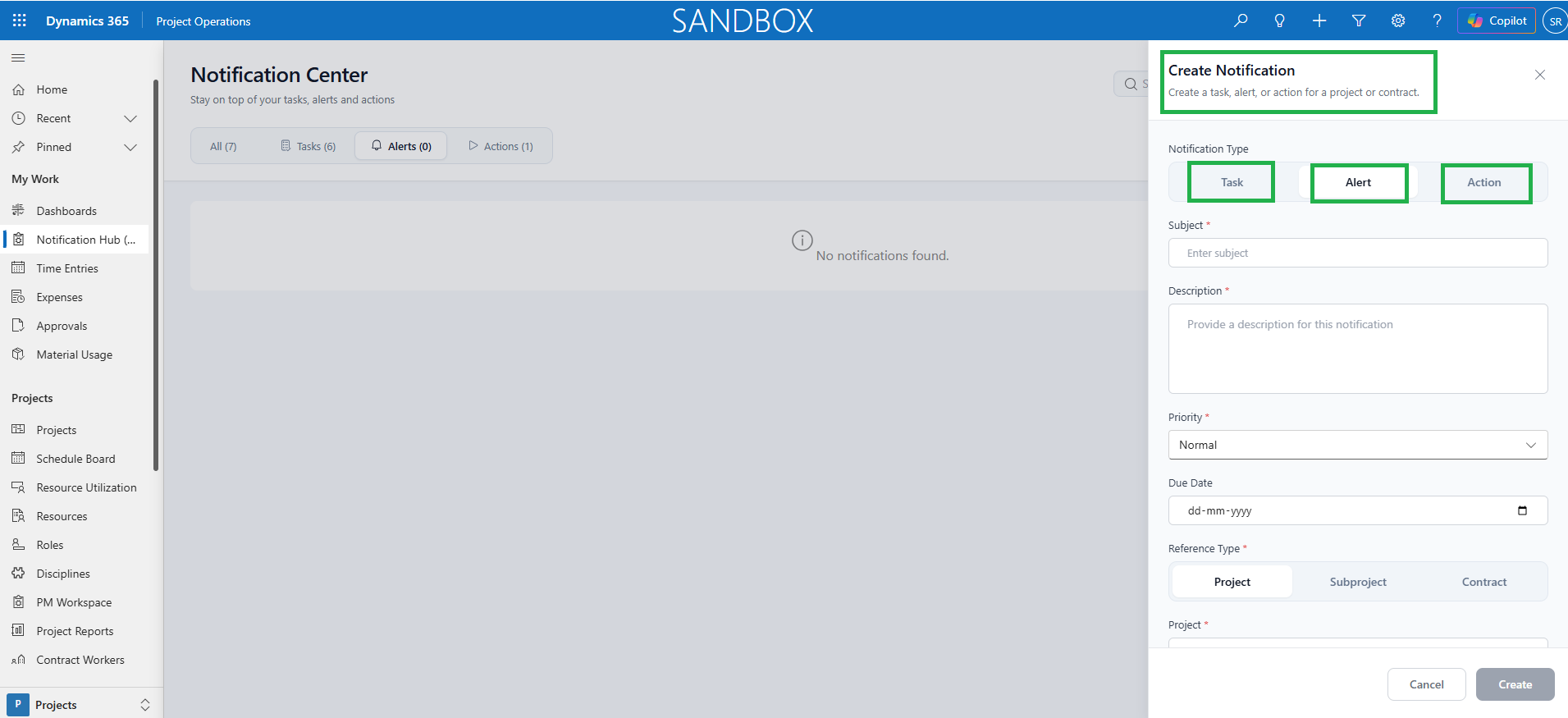
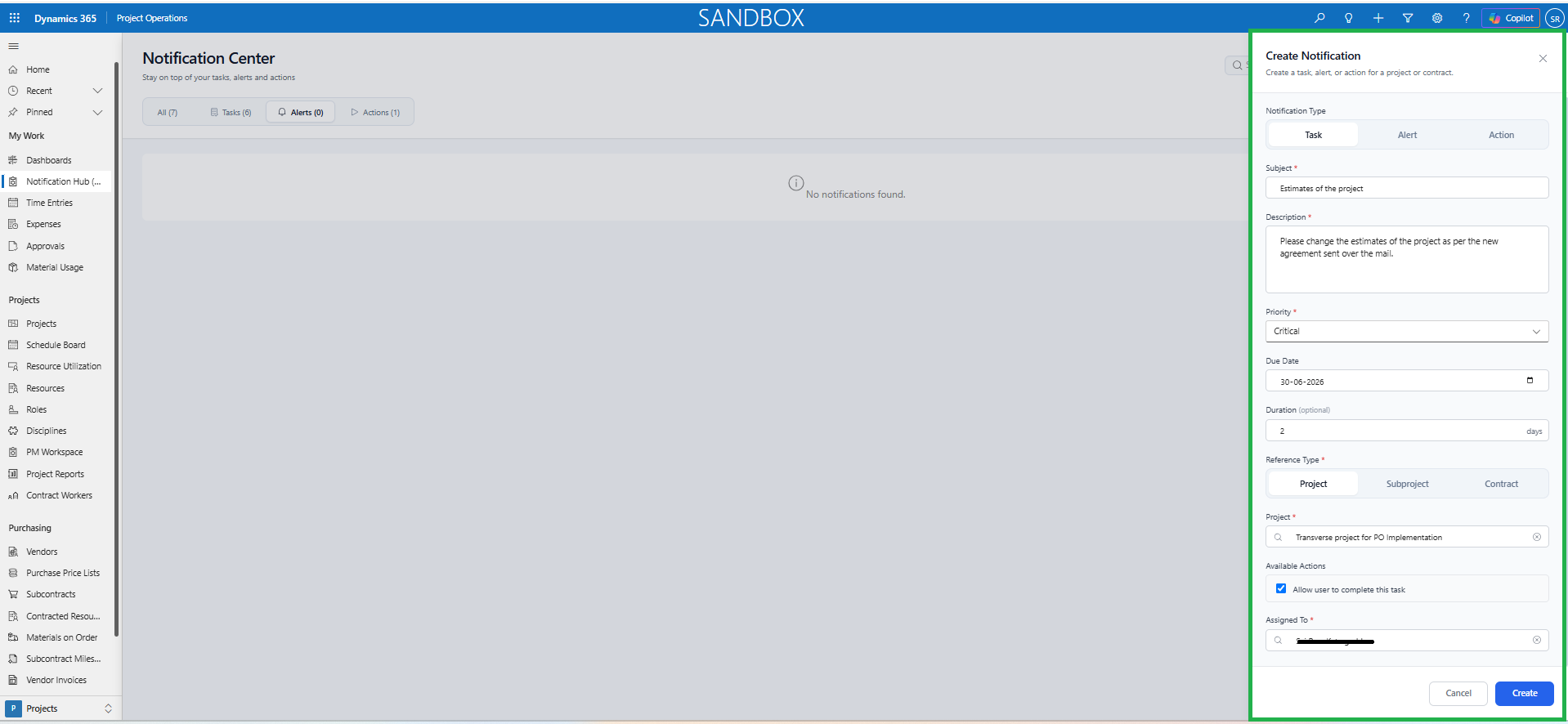
Details of the fields that users can provide while creating notifications are as follows:
| Fields | Description |
| Subject | A short title that identifies the notification which is a mandatory fields. |
| Description | Additional details relating to the notification can be explained like the purpose of the notification or the work to be completed which is a mandatory field. |
| Priority | It is a mandatory field which indicates how urgent the notification is. Available options are Low, Normal, High, and Critical. |
| Due Date | The date by which the task or action should be completed, or the alert should be addressed. |
| Duration | The estimated amount of time needed to complete the task. This field is available only for Task notifications. |
| Reference Type | Specifies the related record for the notification which is mandatory. Users can associate it with a Project, Subproject, or Contract. |
| Available Actions | ‘Allow users to complete this task’ is available on the notification type- Task. ‘Allow users to dismiss this alert’ is available if the notification type is Alert. ‘Allow user to complete this action’ is available if the notification type is Action. Users can set them to “Yes” to allow the assignee users to complete/ dismiss the relevant notifications. |
| Assigned To | The user responsible for completing the task, reviewing the alert, or performing the required action can be assigned which is a mandatory field. |
Track Notifications
The Notification Center helps users to track the status of assigned notifications, search and filter notifications to quickly find the information they need. The notifications are segregated and are displayed to the assignee users in 4 tabs based on the notification types like Tasks, Alerts, Actions and All.
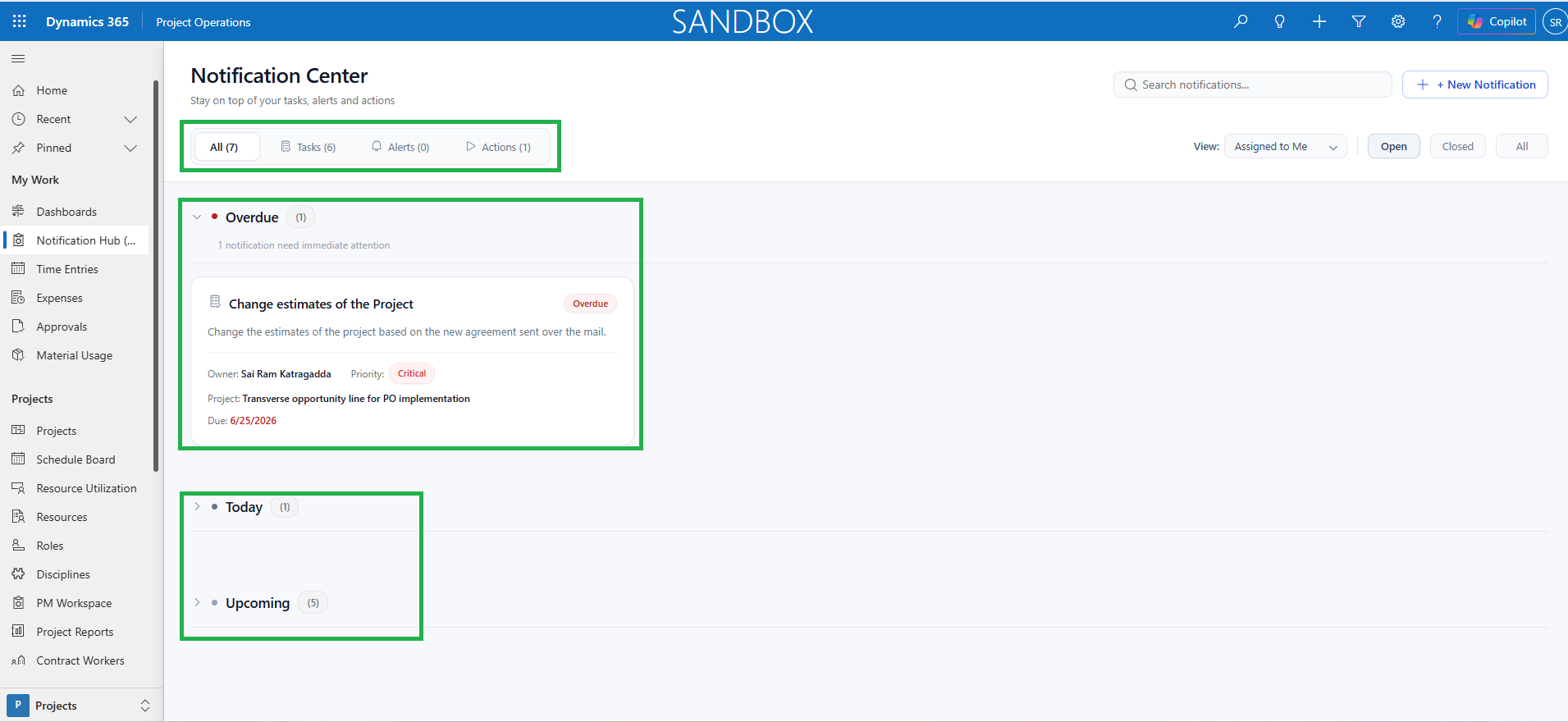
Details of the options of filtering the notifications by the assignee users are as follows:
| Fields | Description |
| Tasks | Displays the notifications relating to the type- Tasks. |
| Alerts | Displays the notifications relating to the type- Alerts. |
| Actions | Displays the notifications relating to the type- Actions. |
| All | Displays the notifications relating to all types- Tasks, Alerts & Actions. |
| Overdue | Displays the notifications that are overdue as per the type of notification filter selected. |
| Today | Displays the notifications that are due as per the system date based on the type of notification filter selected |
| Upcoming | Displays the upcoming notifications as per the type of notification filter selected. |
View Notifications
The notifications can be viewed based on the assignee relationship to the associated records with different contexts like Assigned to Me, My Projects, My Subprojects, My Projects/Subprojects & My Contracts.
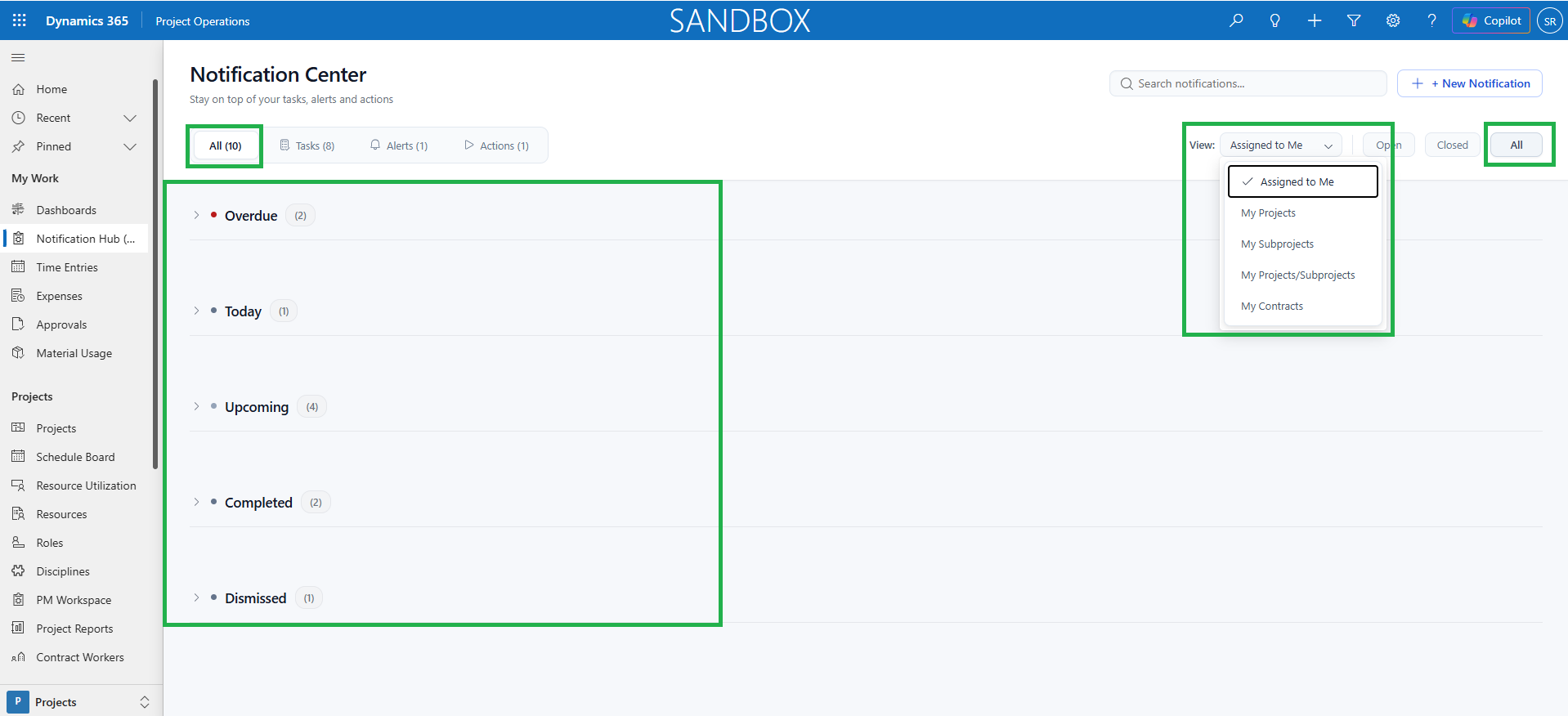
Details of the different view contexts available to the assignee are as follows:
| Fields | Description |
| Assigned to Me | Displays all the notifications that are assigned to the assignee user. |
| My Projects | Displays the notifications related to the projects that are assigned to the user in which the assignee is the Project Manager. |
| My Subprojects | Displays the notifications related to subprojects that are assigned to the user in which the assignee is the Project Manager. |
| My Projects/Subprojects | Displays the notifications related to projects & subprojects that are assigned to the user in which the assignee is the Project Manager. |
| My Contracts | Displays the notifications related to contracts that are assigned to the user in which the assignee is the Project Manager. |
| Open | Displays all the open notifications related to the type of notification selected based on the context view selected by the user. |
| Closed | Displays all the notifications related to type of notification selected which are closed by completing or dismissing them and based on the context view selected by the user. |
| All | Displays all the notifications that are open & closed related to the type of notification selected and based on the context view selected by the user. |
Available Actions
After a notification is assigned, the assignee can manage it by performing the following actions by clicking/ opening the relevant record:
- Edit the notification details, including the Subject, Description, Priority, and Due Date by clicking the edit button.
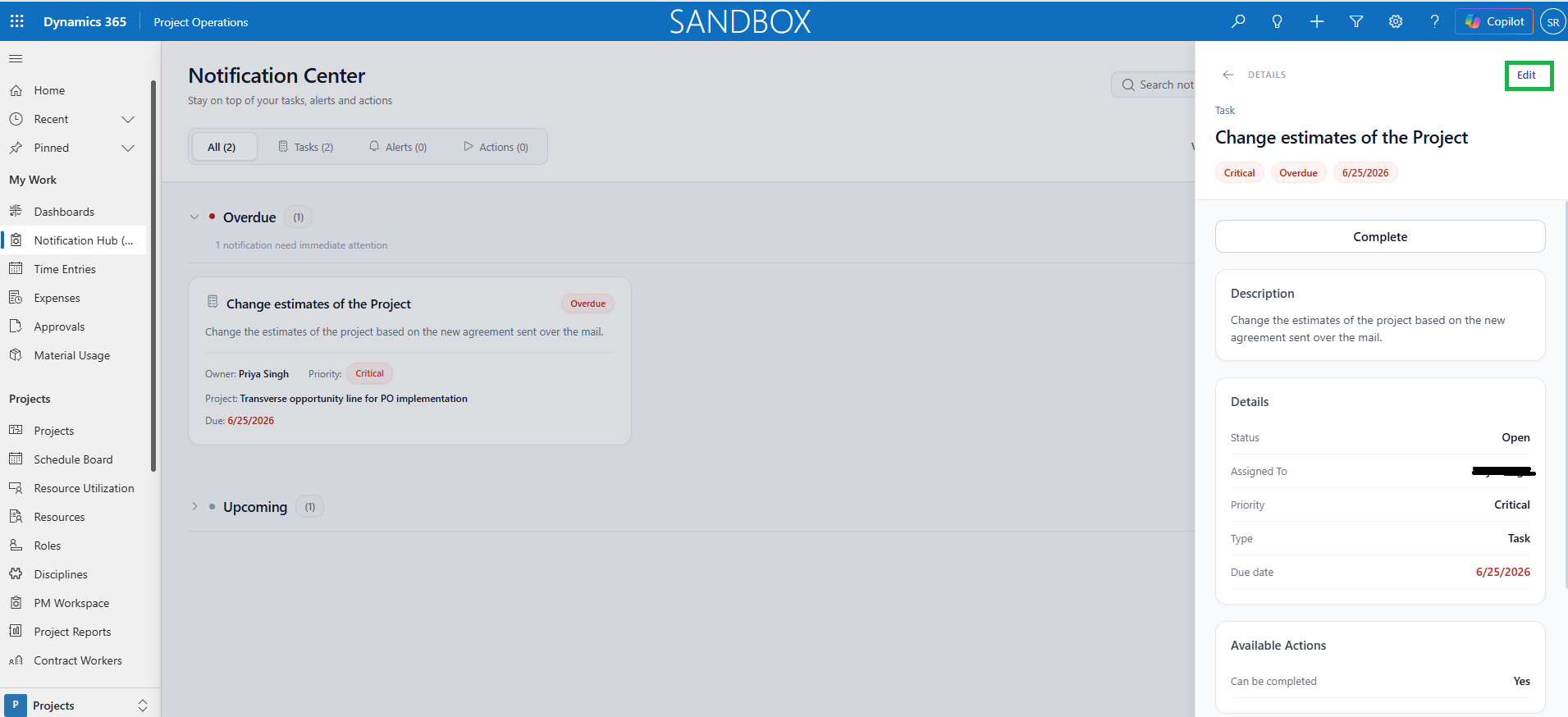
- Reassign the notification to another user, if needed.
- Update the Available Actions setting for the notification.
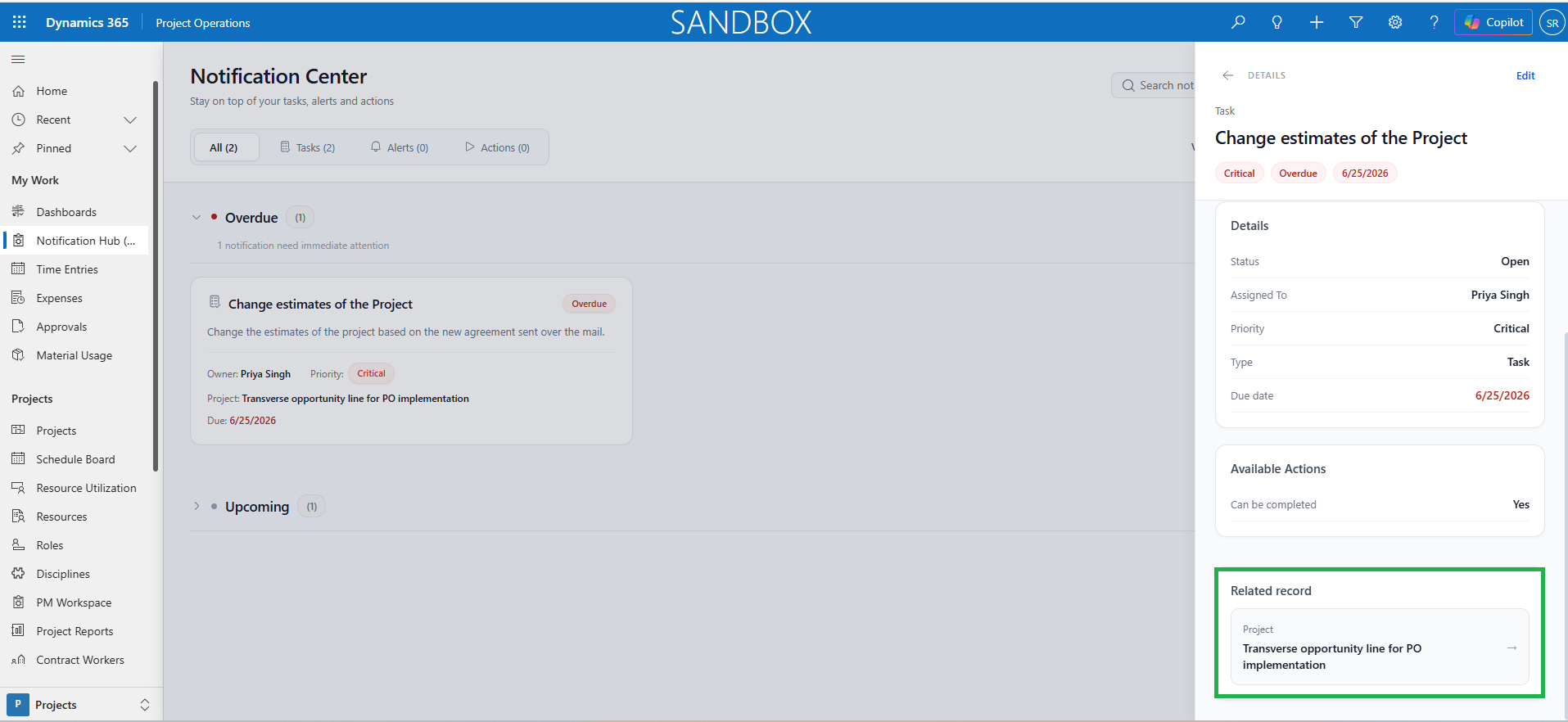
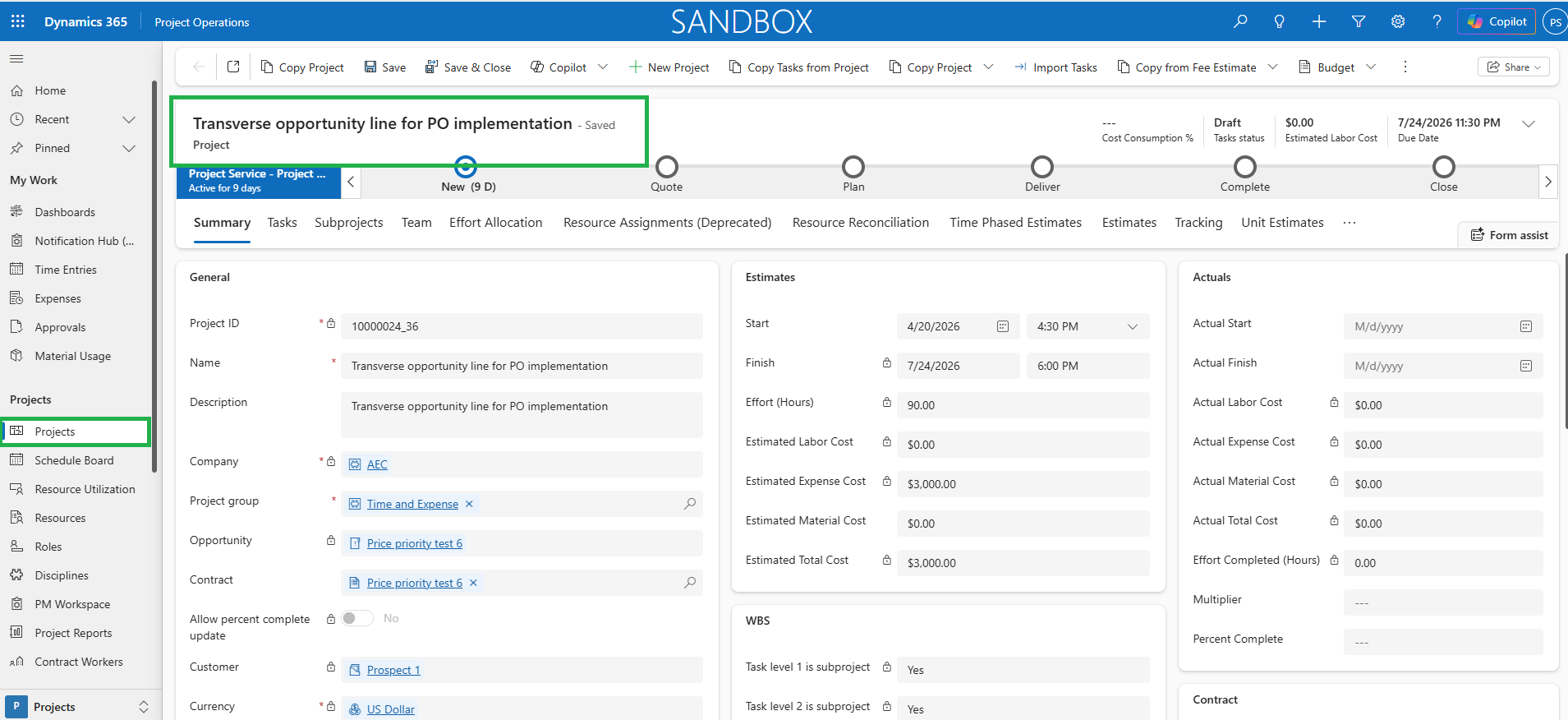
- Open the related Project, Subproject, or Contract directly by selecting the linked record in the notification to perform the relevant action as per the description of the notification.
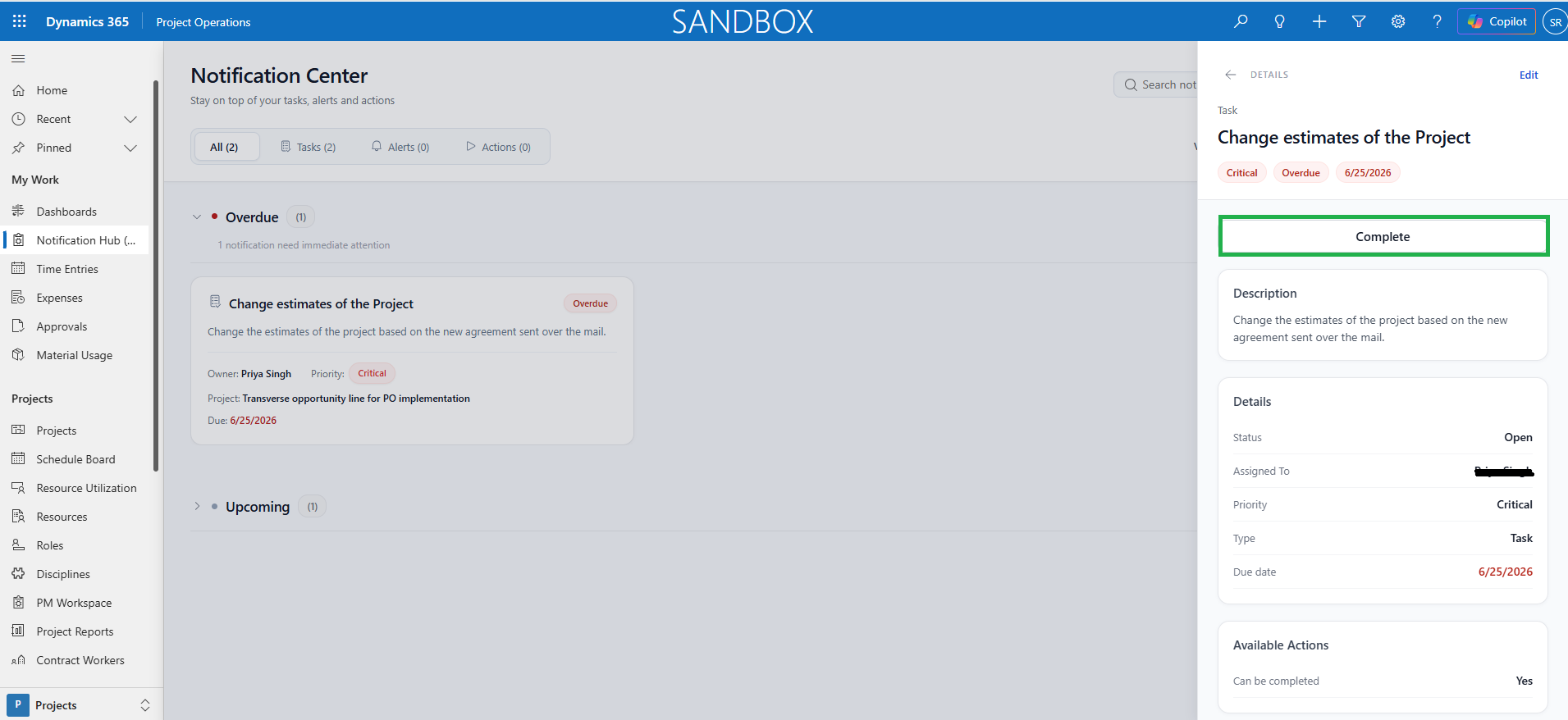
- Complete or dismiss the notification, depending on its type and the actions enabled by the creator:
- Tasks – Mark the task as Complete, if completion is allowed.
- Alerts – Dismiss the alert, if dismissal is allowed.
- Actions – Mark the action as Complete, if completion is allowed.
- The users can also use the search button to filter out the required notification from the entire list of notifications.